Operating instructions in dialogue: three AI roles write, substantiate and check your instructions
Operating instructions per Annex I section 1.7.4 of the Machinery Directive are not prose you “quickly” have a chatbot write. They are part of the evidence of conformity; every number in them has consequences. The operating instructions in dialogue solve this with three roles: a curator keeps the fact sheet from your project data, an author writes visibly into the document, a reviewer reports everything that is not substantiated. This article shows, using a real session, what that looks like, what the big advantage is and where the limits lie.
Why a chatbot should not write operating instructions
The temptation is obvious: paste the machine description into a language model, “Write me chapter 3, technical data”, and in seconds there is a fluent text. The problem is not the style but the provenance. A general model does not know your machine. It knows thousands of operating instructions and adds what usually appears there: 400 V, 50 Hz, a sound pressure level below 70 dB(A), maintenance every 500 operating hours. Plausible, ready to print and possibly wrong for your machine.
Annex I section 1.7.4.2 prescribes the content of the operating instructions, from the intended use through the residual risks to the information on noise emission. This content must match the risk assessment and the declaration of conformity, otherwise the technical documentation contradicts itself. Three error patterns keep turning up in freely written AI texts:
- Invented numbers. Values that appear nowhere in the project but sound so self-evident that they slip through review.
- Generic safety chapters. Textbook warnings instead of the residual risks your risk assessment actually identifies.
- No traceability. Nobody can say later where a sentence came from, whether it still matches the current state of the risk assessment and who checked it.
Three roles instead of one chatbot
The operating instructions in dialogue separate knowing, writing and checking. All three roles work on the same fact sheet, and none can overrule another: the author may only write what the curator has substantiated, and the reviewer reports if it does so anyway. The roles run on Claude models from Anthropic, the author on the most capable one, curator and section reviewer on fast models.
| Role | Task | What you see of it |
|---|---|---|
| Curator | Builds the fact sheet from project, risk assessment, standards checklist, declaration of conformity, test values and safety functions. Every fact carries its reference and date. 14 gap rules detect what is still missing; contradictions between your input and the database are flagged. | “Fact sheet” tab with counter, categories, origin of each fact, open gaps. |
| Author | Writes into the document exclusively through tools: write section, insert table, set warning, draft chapter. Reads first what is there. If a detail is missing, it asks or sets a named placeholder. It does not guess. | Tool chips per round, the section takes shape live in the document, questions with answer fields. |
| Reviewer | 21 fixed check rules with their reference in Annex I plus an AI check of every new section against the fact sheet: unsubstantiated numbers, invented standards, conformity claims, warnings missing the three-part structure. | “Reviewer” tab with red, amber and informational findings, each finding also directly below the affected section. |
How a session runs
The view is deliberately built like a conversation: on the left the history with the input field at the bottom, on the right the document with the tabs Document, Fact sheet and Reviewer. The panel can be collapsed, as can the application’s sidebar. The following screenshots come from a real session with the demo project, a hydraulic baling press.
1. Give an instruction
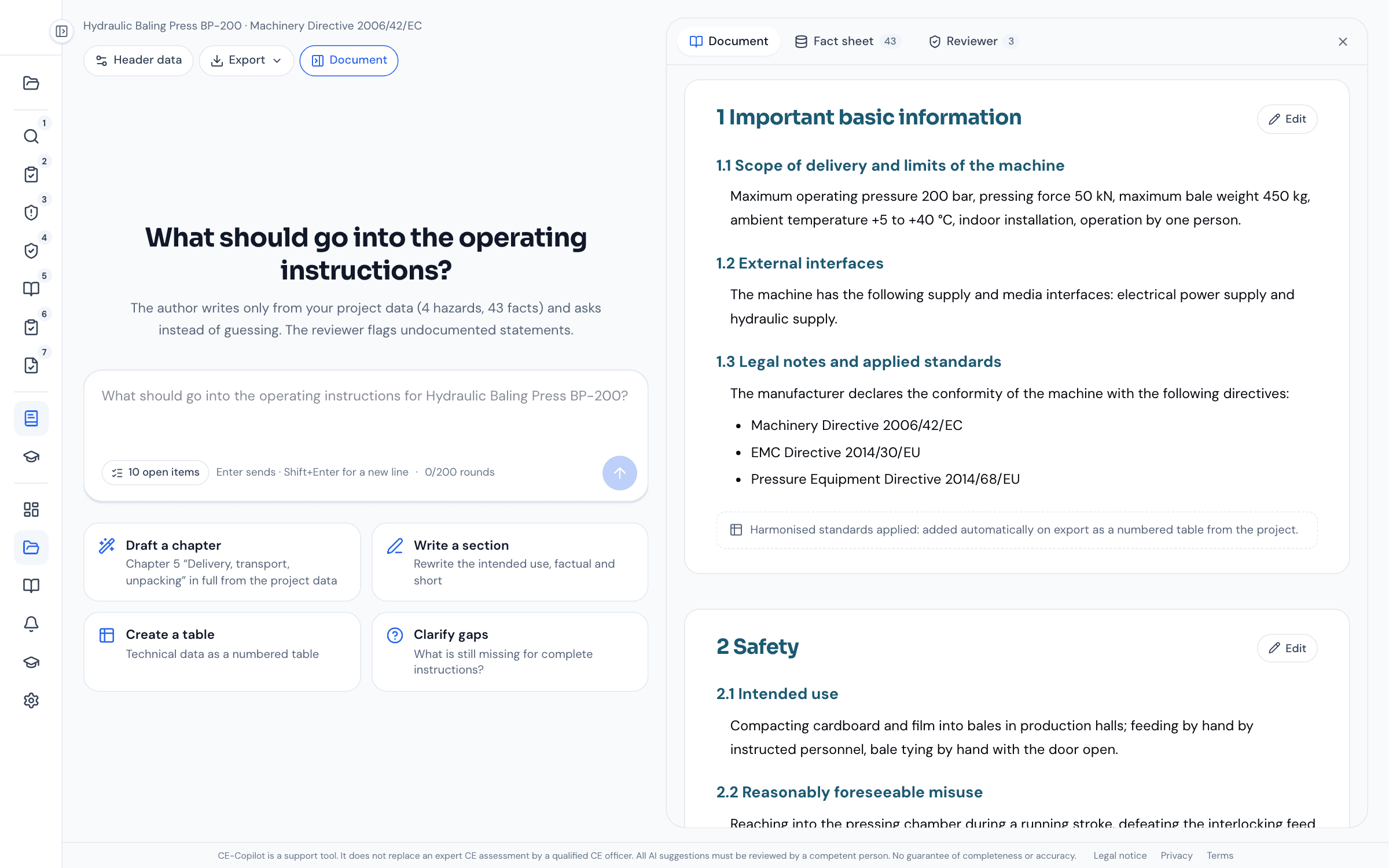
One sentence is enough, or one of the suggestion cards. At the top right of the document you can already see what the fact sheet knows from the project; the counter in the input field shows how many details are still open.
2. The author reads and writes visibly
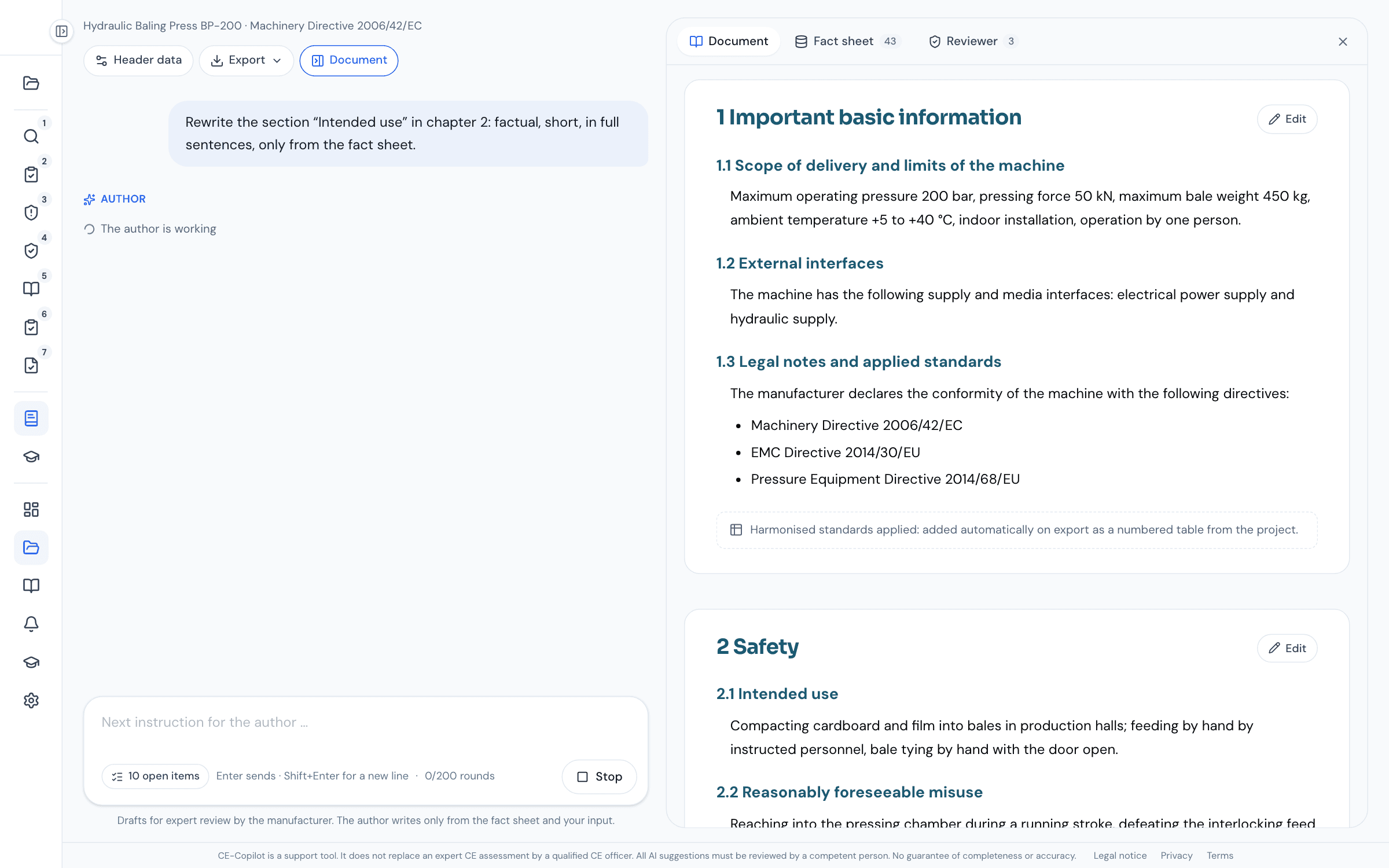
Before every change the author reads the existing section. Then the new text takes shape live in the document on the right, word by word, with the note “The author is writing”. Every round can be cancelled with “Stop”.
3. Tools, reply, check
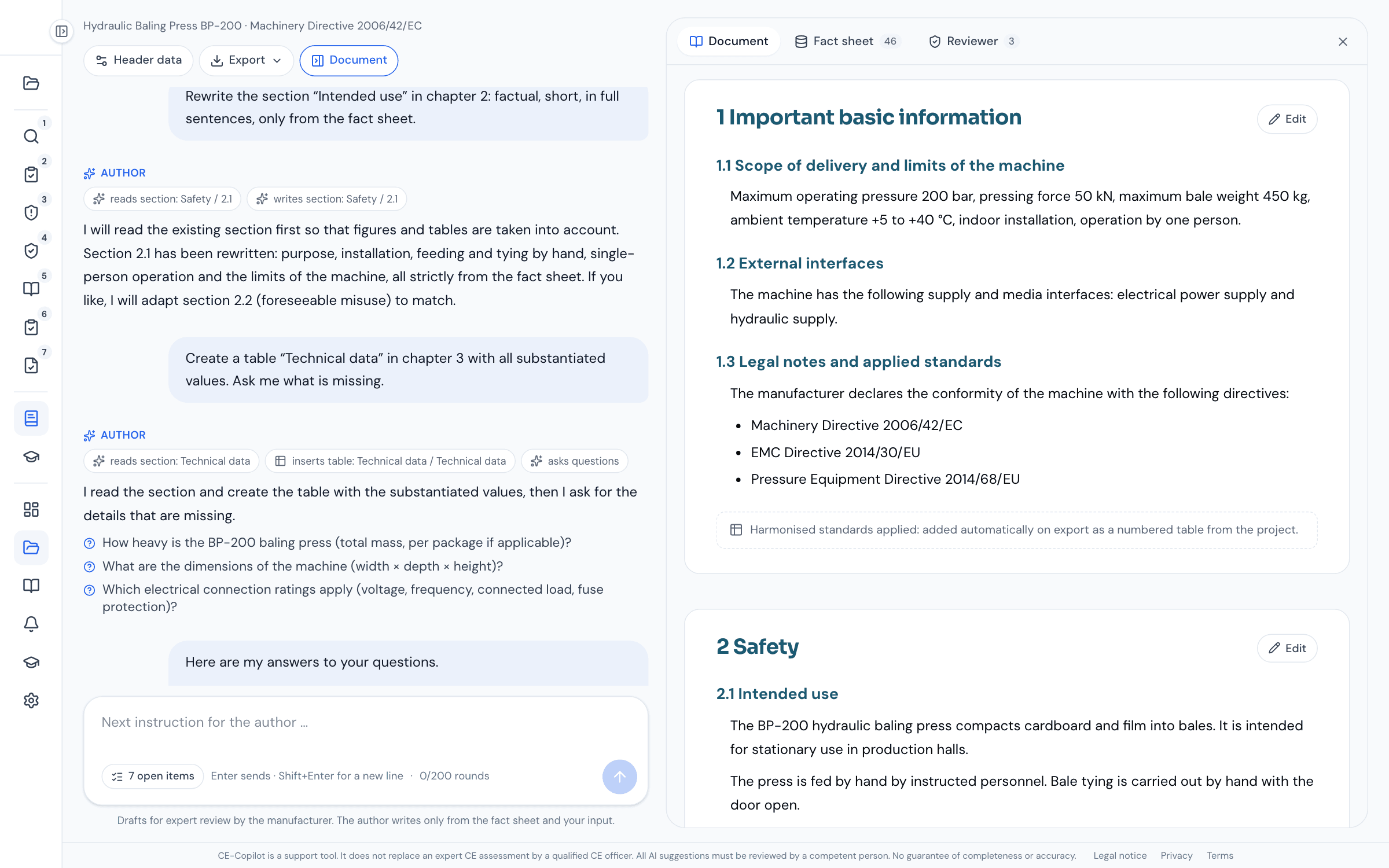
After the round, chips show which tools the author used. Its reply in the chat stays short: what it did, what is open, which decision you should make. The chapter text is never repeated in the chat; it is in the document. In the background the reviewer runs over the new section.
Click along: a session in 90 seconds
The demo replays a session with fixed sample texts, without an AI request and without signing in. Answer the question, then select a sentence in the document to request a change at one specific spot. In the application, the author writes from your project data.
Reaching into the press chamber during the stroke, bypassing the interlocked loading door …
Questions instead of guessing
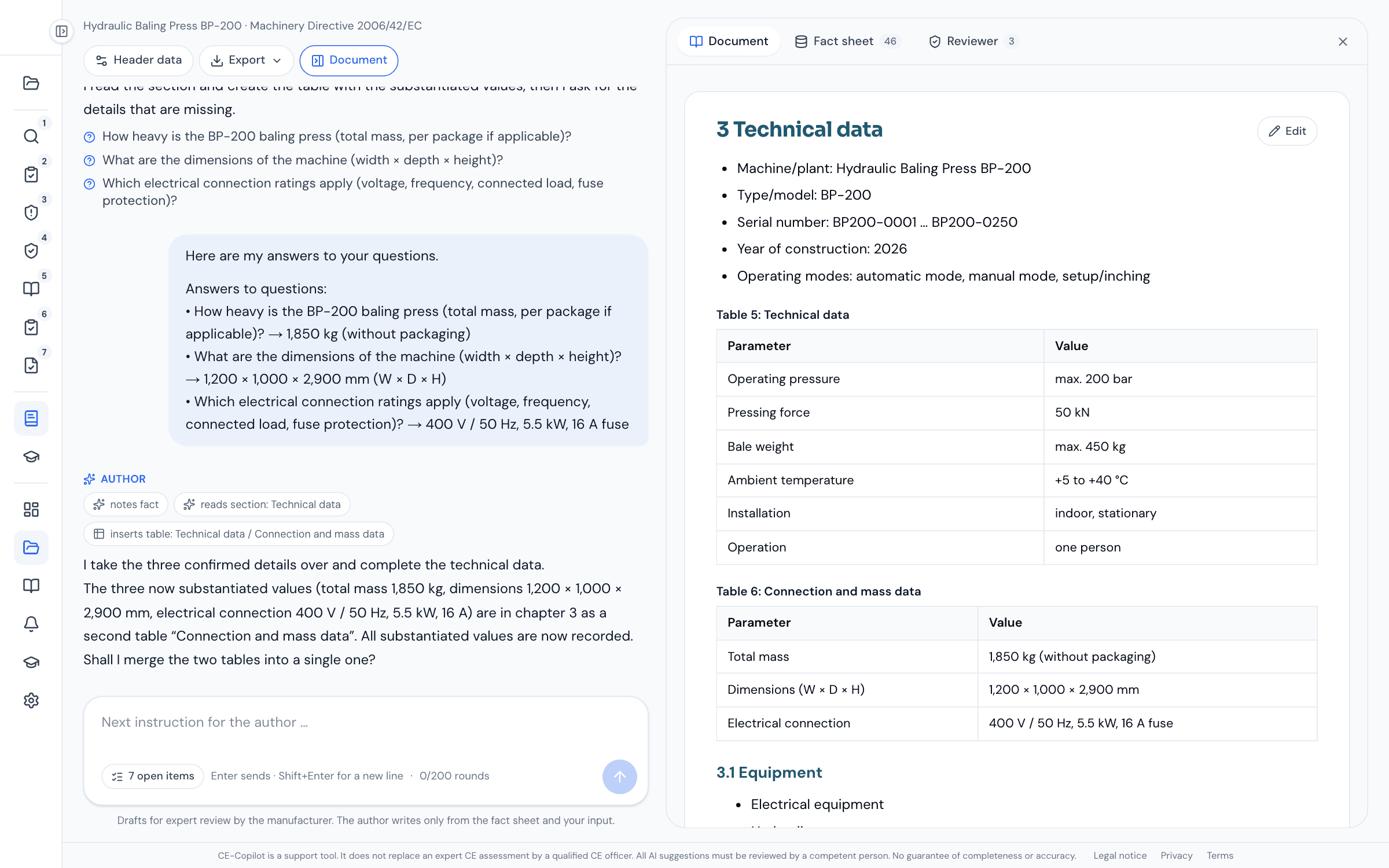
The most important difference from a chatbot shows when something is missing. For the “Technical data” table, the baling press fact sheet knows operating pressure, pressing force and bale weight from the risk assessment, but neither total mass nor dimensions nor electrical connection ratings. The author creates the table with the substantiated values and asks up to three concrete questions with answer fields for the rest.
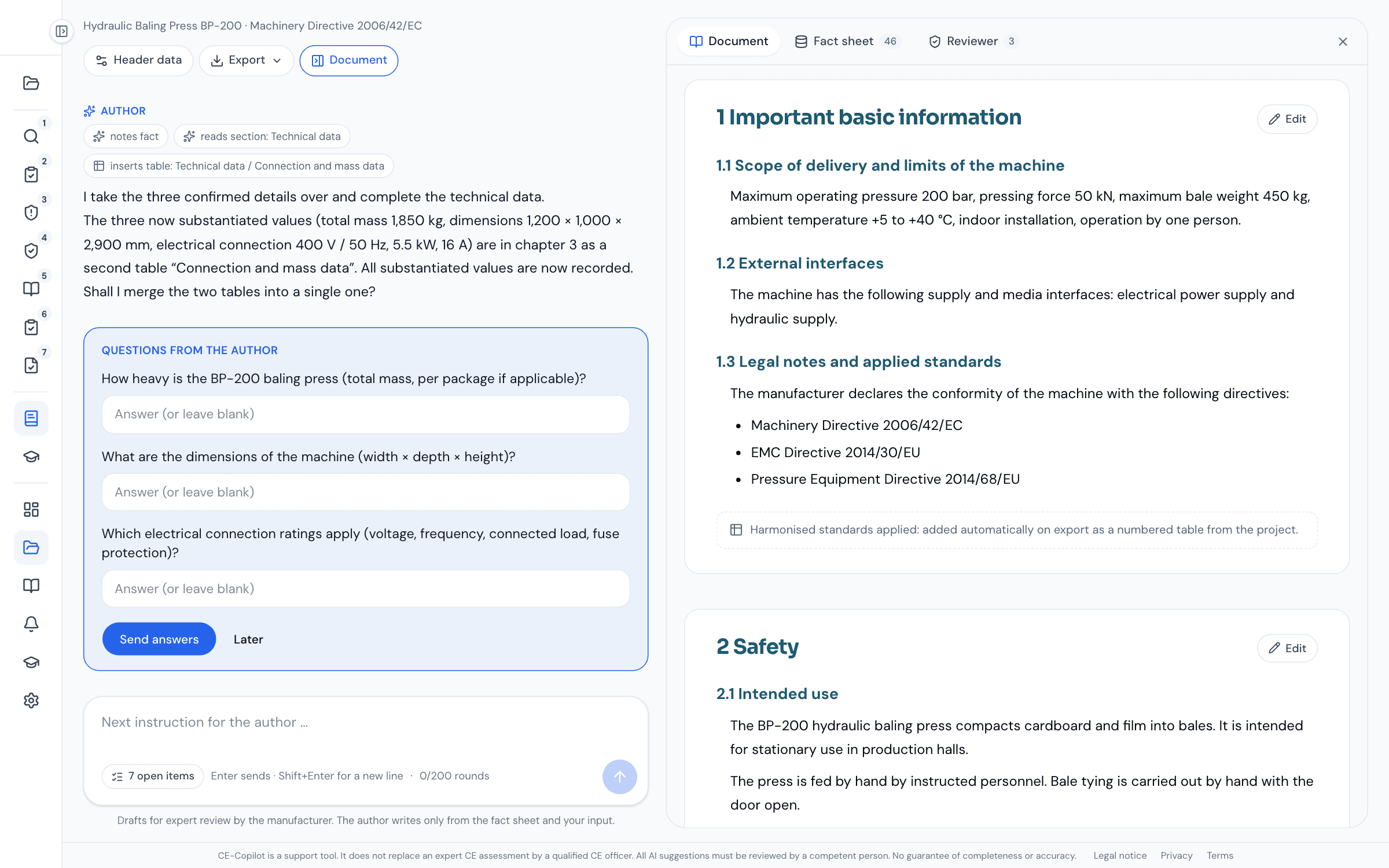
Your answers do not go into the history as loose text; they become facts marked “Your input”. In the next round the author uses them directly, here for the table in chapter 3.
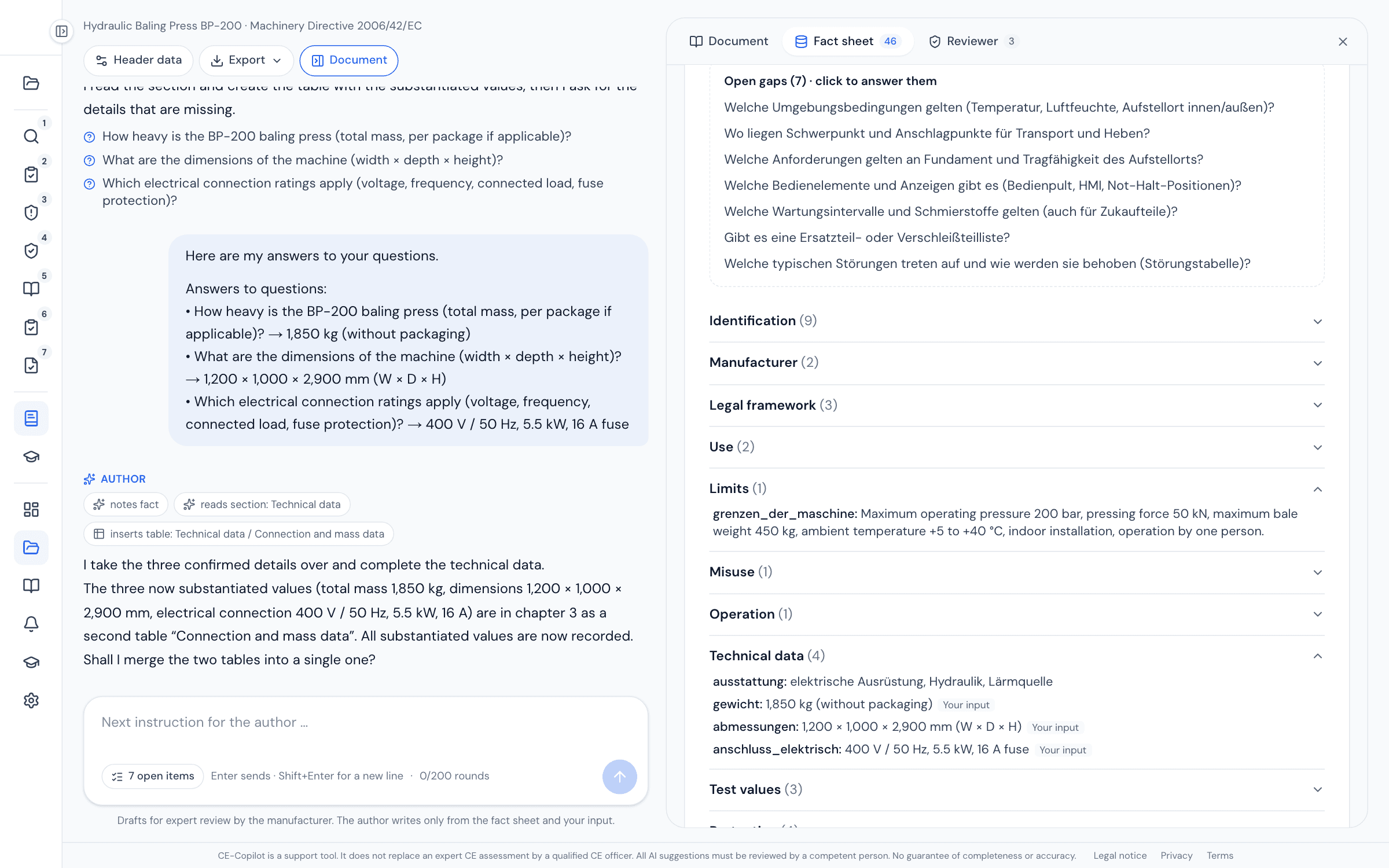
The fact sheet can be viewed at any time. It is the basis on which the author works and against which the reviewer checks: facts by category, each with origin and date, plus the open gaps. If a detail from the conversation contradicts the database, the fact is flagged as a contradiction and the author asks rather than decides.
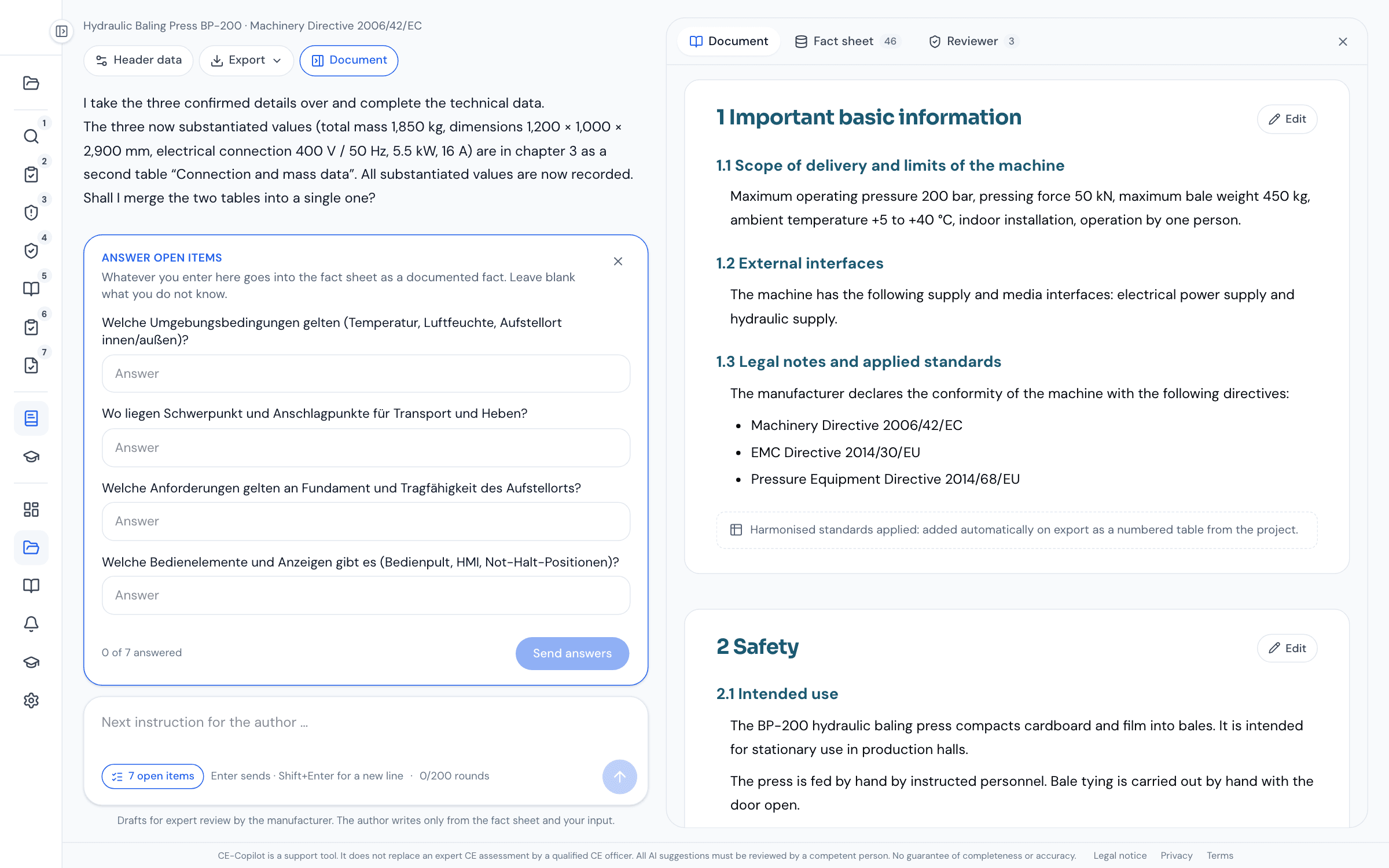
If you prefer to close the gaps in one go, the counter in the input field opens the form “Answer open details”. What you enter is adopted as a substantiated fact without passing through a model. What you do not know stays empty; such places get a named placeholder in the text that the reviewer flags until approval.
The reviewer: Annex I as a check rule
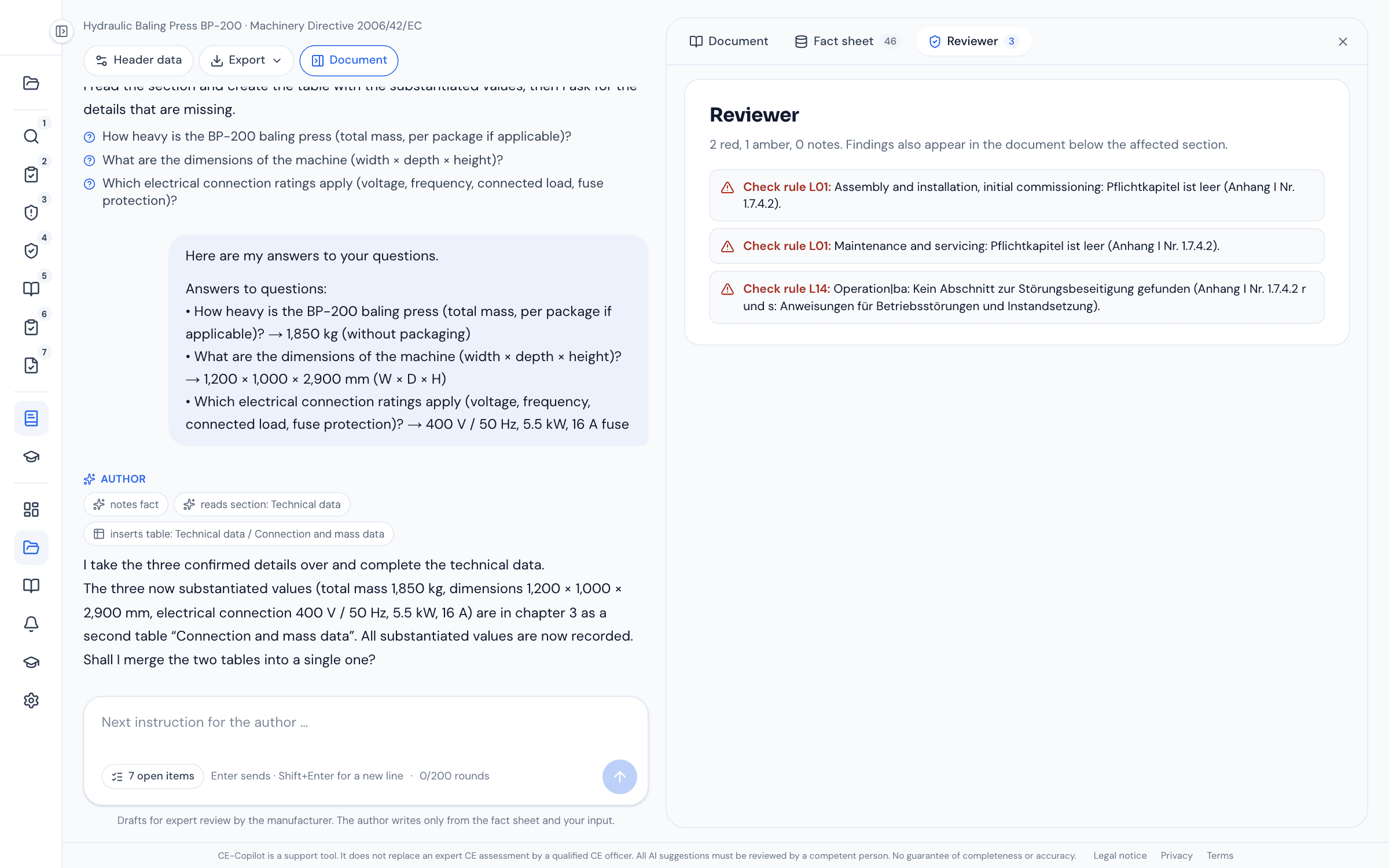
The reviewer works on two levels. 21 fixed check rules run on every change, without a model, with their reference in Annex I. In addition, an AI checks every newly written section against the fact sheet: numbers without evidence, standards that are not in the standards checklist, conformity statements that do not come from the declaration. Examples of the fixed rules:
- mandatory chapter per Annex I section 1.7.4.2 empty or hidden
- open placeholders in the text (“[enter total mass from manufacturer]”)
- warning without the three parts: type and source of the hazard, consequences and remedy
- no section on troubleshooting (Annex I section 1.7.4.2 (r) and (s))
- figure without caption, table without title or header row, cross-reference without target
- Markdown or duplicate headings that would break the export
- chapters whose project data have changed since they were written
- hazards with a high, non-accepted residual risk not addressed in the safety chapter
Every finding appears in the Reviewer tab and directly below the affected section. “Have it fixed” turns it into an instruction for the author. “Ignore” requires a justification that is logged with the project, so that it remains traceable later why a note was deliberately not implemented.
Highlight, have it changed, carry on
Most changes to operating instructions are small: a sentence too long, a list instead of a paragraph, a missing note. For these you highlight the passage in the document. “Change in dialogue” appears at the mouse position, the passage moves into the input field as a quotation, and you write what should be different about it. The author reads the section, changes only the highlighted passage and leaves the rest word for word.
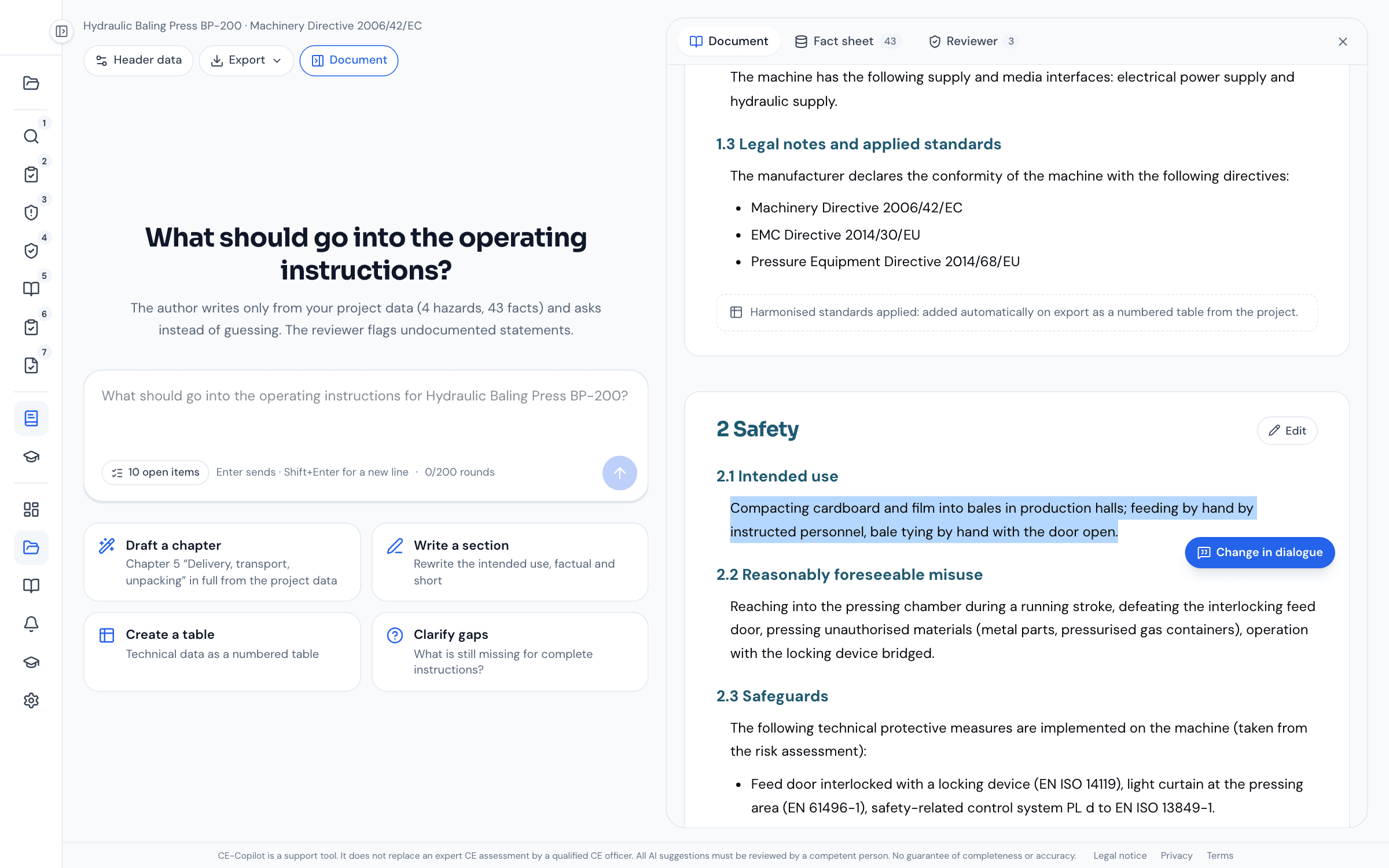
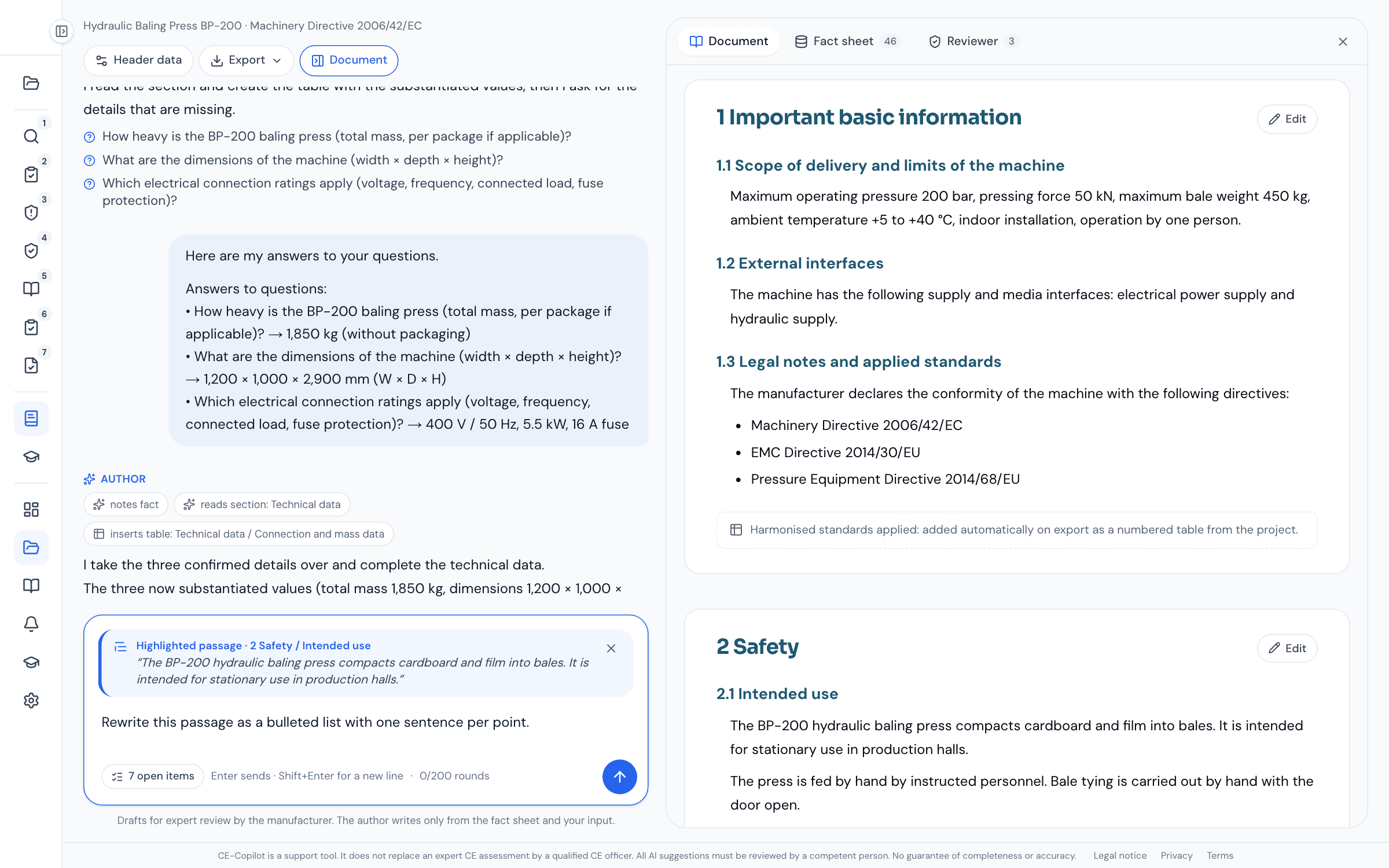
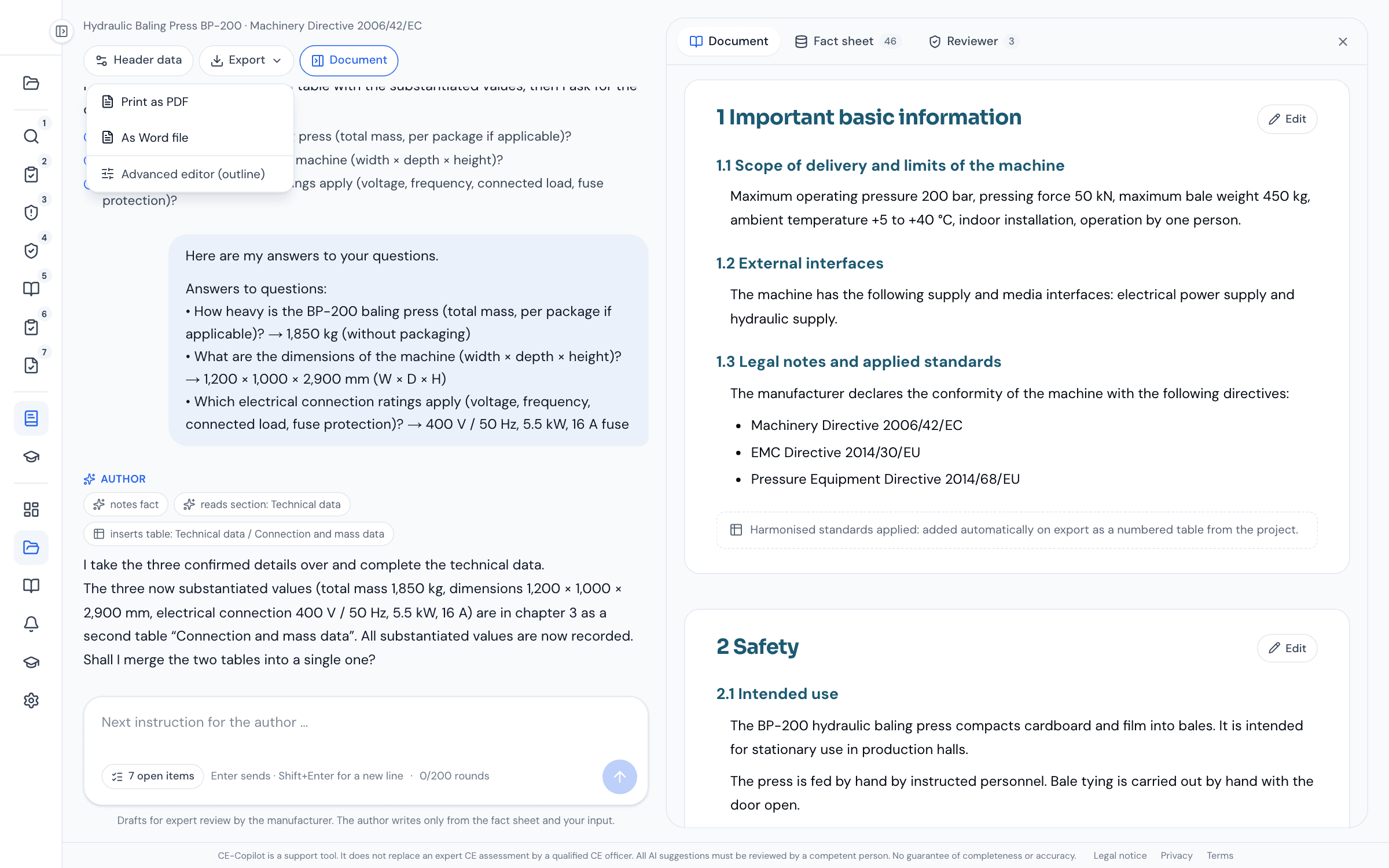
For everything that no language model should do, each chapter has the “Edit” button: your own text, images with captions, tables (also pasted from a spreadsheet), the header data of the cover page with title image and the choice of whether figures and tables are numbered consecutively or per chapter. The structure itself, i.e. your own chapters and their order, lives in the advanced editor.
What comes out at the end
The export as PDF or Word contains the twelve chapters per Annex I section 1.7.4 with table of contents, list of figures and list of tables. All tables are numbered, including those the document generates from the project: the overview of residual risks from the risk assessment, the applied harmonised standards and the evidence of the risk assessment. Cross-references such as “see Table 3” are resolved on export; warnings appear with signal word, source of hazard, consequences and remedy.
What a complete export of the same machine looks like is shown by the sample operating instructions with 114 pages as a PDF, without signing in.
The real advantage
Many tools can write faster. The difference lies in what you have to check afterwards. With a freely written AI text you check every sentence for its provenance. With the operating instructions in dialogue you check a fact sheet and a list of findings.
Every statement has a reference
The author may only use what is in the fact sheet or what you tell it. The fact sheet names the source of every fact, such as “risk assessment, limits of the machine” or “Your input”. You check sources instead of prose.
Gaps become questions, not text
A general language model fills a missing connected load with a plausible value. The author asks the question instead, and your answer then stands substantiated in the fact sheet and in the chapter.
The document stays tied to the risk assessment
Residual risks and applied standards come as numbered tables directly from the project. If the risk assessment changes, the reviewer reports the affected chapters as outdated, and one instruction is enough to bring them up to date.
You see every step and keep your hand on the document
Nothing goes into the instructions without your instruction. Every tool call is visible, every round can be stopped, every chapter remains editable by hand, with your own figures and tables.
What the dialogue does not do
A document that looks complete quickly raises the expectation “all done”. That is why the limit is part of it:
- The expert review and approval. Every text is a draft from your project data for which you, as the manufacturer, are responsible.
- Values from the design that are not in the project. Instead of guessed numbers, the author sets named placeholders or asks.
- Figures of the machine. You upload images yourself; captioning and numbering are handled by the document.
- Translations into other official languages and the marking as a translation.
- Conformity statements that are not taken word for word from the project’s declaration of conformity.
Availability and price
The operating instructions in dialogue are an add-on module in the Professional and Business plans and are unlocked once per project for €12.99, with no recurring fee. The fair-use allowance is 100 dialogue rounds per month in the Professional plan and 200 in the Business plan, pooled across the team. A round is one instruction with all the tool calls that belong to it. Manual editing and export are unlimited. Projects that unlocked the operating instructions earlier use the dialogue at no extra charge. The conversation history is saved with the project; the details are in the privacy policy.
FAQ
Frequently asked questions about the operating instructions in dialogue
Does the AI author invent values when something is missing?
How do I know where a statement in the text comes from?
Can I write text myself and insert images?
What happens if the risk assessment changes later?
How many rounds do I need for a set of instructions?
Does this also apply under the Machinery Regulation from 2027?
What do the operating instructions in dialogue cost?
Does the dialogue replace a technical writer?
Sources
- Directive 2006/42/EC on machinery (Machinery Directive), Annex I section 1.7.4 Instructions, OJ L 157 of 9.6.2006: https://eur-lex.europa.eu/legal-content/EN/TXT/?uri=CELEX:32006L0042
- Regulation (EU) 2023/1230 on machinery (Machinery Regulation), Annex III section 1.7.4 Instructions, OJ L 165 of 29.6.2023: https://eur-lex.europa.eu/legal-content/EN/TXT/?uri=CELEX:32023R1230
- Guide to application of the Machinery Directive 2006/42/EC, edition 2.3 (European Commission), §§ 254 et seq. on instructions: https://ec.europa.eu/docsroom/documents/38022
A note in our own interest: the operating instructions in dialogue are part of CE-Copilot and require a project with a risk assessment, because the fact sheet is built from it. What a finished export looks like is shown by the free sample operating instructions, the way there by the free trial.